Important Information Before Using Remote Access:
Before explaining how to access the microscopes remotely, please read the following important information:
- Remote access is enabled only upon request and only for the duration of your booked session. Once your session has ended, remote access will be automatically disabled.
- Remote access sessions are audited and recorded. In the event of a technical issue or incident, DCI personnel may review the recordings if necessary.
- During your remote session, you are responsible for operating the microscope according to DCI guidelines and for setting up your data collection.
- You must sign in using your own UNIL credentials. By logging in, you are considered the active user of the microscope. You are therefore responsible for the instrument during your session. Please do not share your session or credentials with other users.
- As always, we trust you to use the equipment responsibly and not to modify or tamper with the hardware and/or software configuration.
- If you encounter any problems, please do not hesitate to contact a member of the DCI staff during opening hours.
Remote Access Service:
Access to the DCI remote connection service is subject to the conditions below. By connecting remotely, you acknowledge that you have read, understood, and accepted these conditions and agree to use the equipment in accordance with DCI Lausanne policies and guidelines.
The DCI remote access platform is available when connected to the UNIL VPN.
DCI Remote Access Platform:
To establish a successful remote connection, please follow the instructions provided in the documentation available via this LinkToDocument or follow the step-by-step described below.
If you experience any difficulties accessing the platform or using the remote connection, please do not hesitate to contact the DCI team. We will be happy to assist you.
Connect to the UNIL Ivanti VPN:
Before connecting, please ensure that:
- You have activated or are already connected to the UNIL VPN.
- You have sent your UNIL username to the DCI staff.
- You have requested remote access for your booked session.
- Your UNIL account is still valid and Ivanti Secure Access Client is installed.
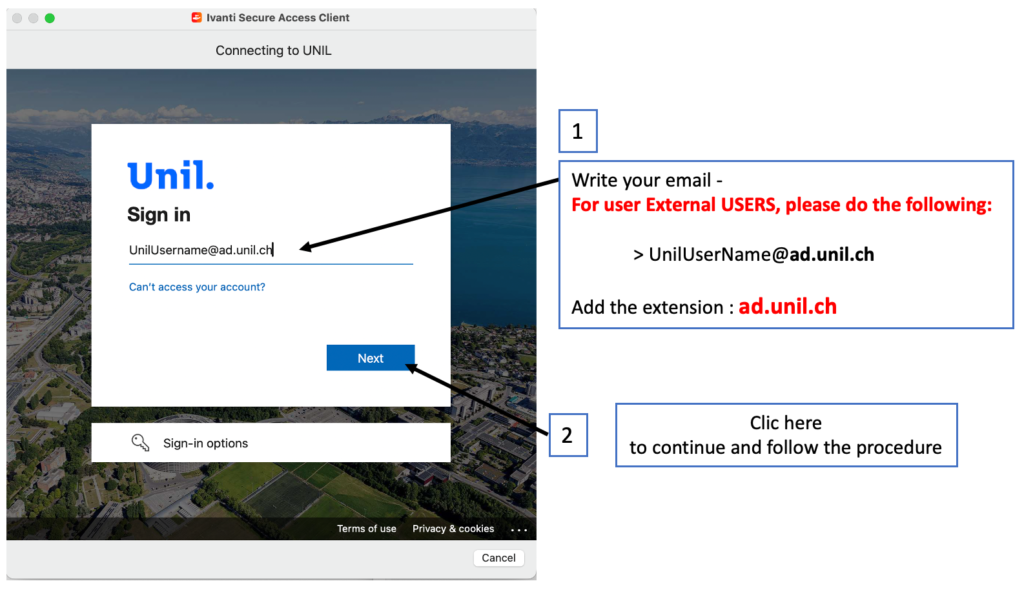
Setting up the remote connection:
Access the remote platform using the following link:
The following access will open in your browser
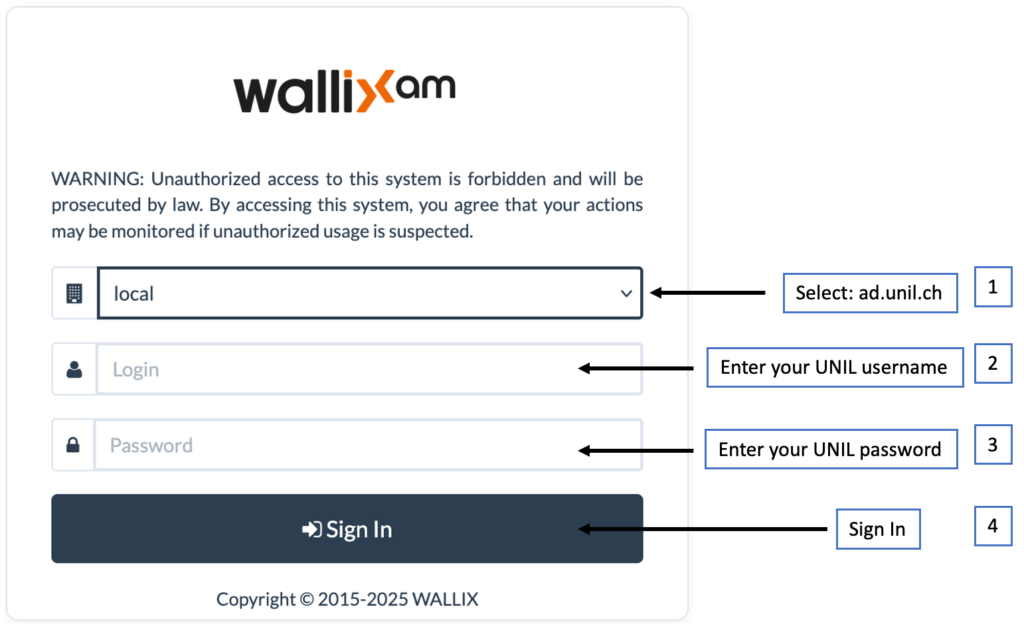
Resource selection access:
The Wallix Access Manager interface will then load.
Once loading is complete, you will have access to the Wallix interface and the resources.
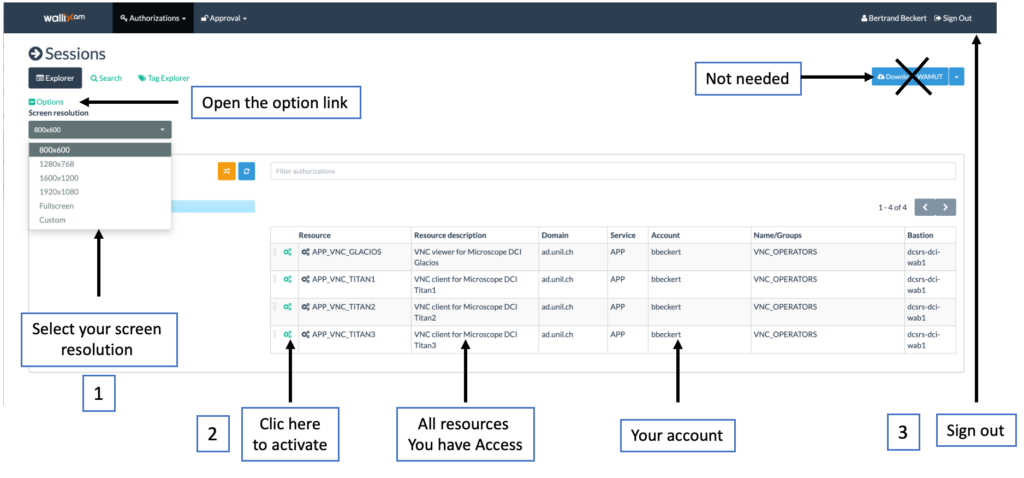
Only the resource you have booked will be visible in the web interface
In the main Wallix interface and the resources access you can setup your screen resolution based on your monitor size. It is an iterative process you can change the resolution and reactivate the resource.
Acknowledge the information:
As part of our security policy, all remote access sessions are recorded.
In the event of a technical issue or incident, DCI personnel may review the recordings if necessary.
To access the selected resource, please acknowledge and accept this information.
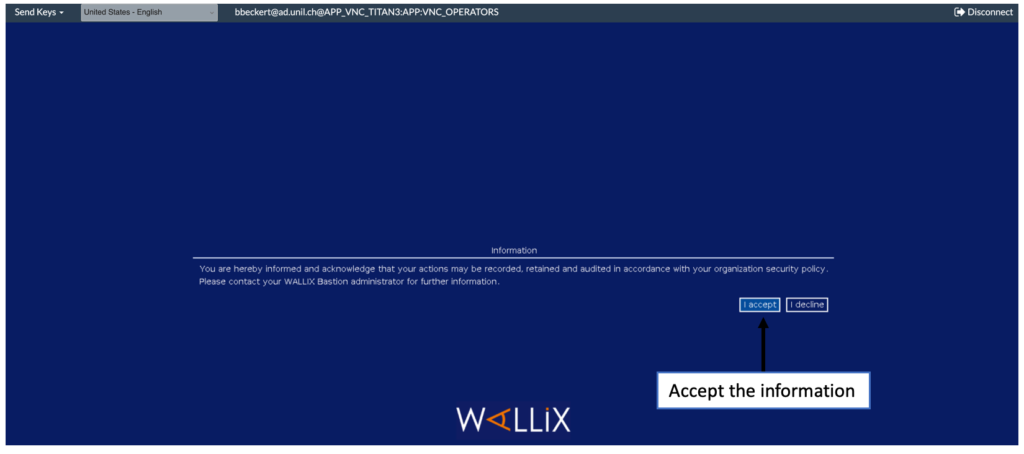
Access to the ressource:
We are currently using MightyViewer (VNC client).
More information is available on how to use this software on the software home page:
If needed please visit: https://mightyviewer.com/
To activate the resource for remote connection you need to switch the view to a full screen view to get access to the microscope.
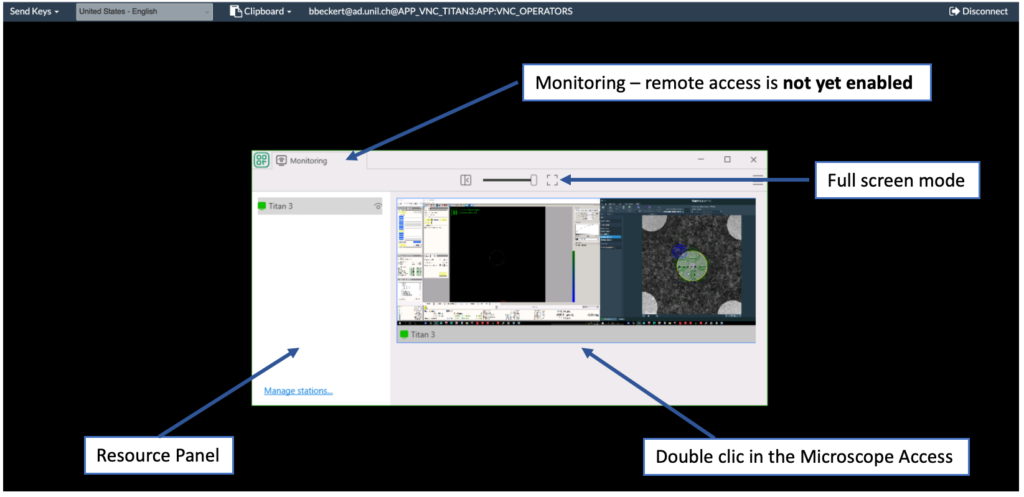
Enabling remote control of the resource:
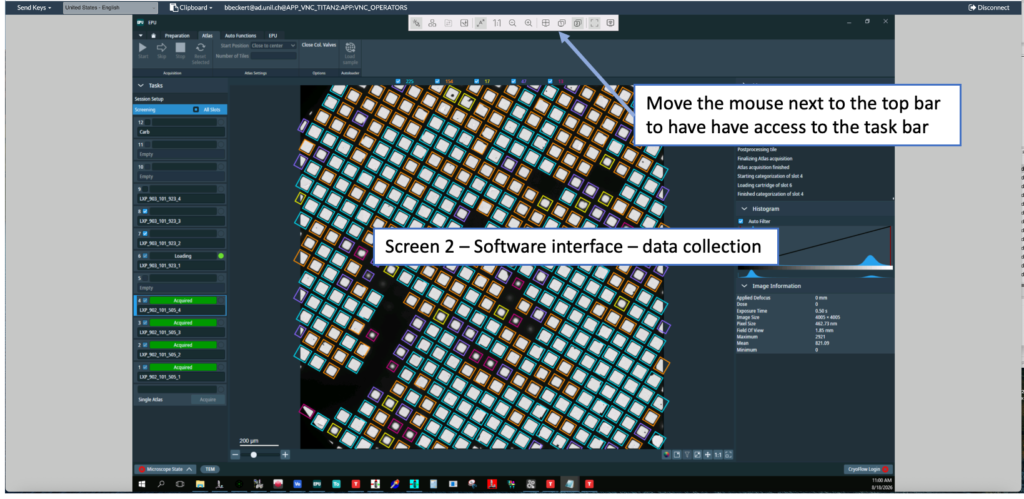
Once the resource is activated you can navigate from screen to screen.
Screen 1 (microscope view).
Screen 2 (EPU or Tomo or other software).
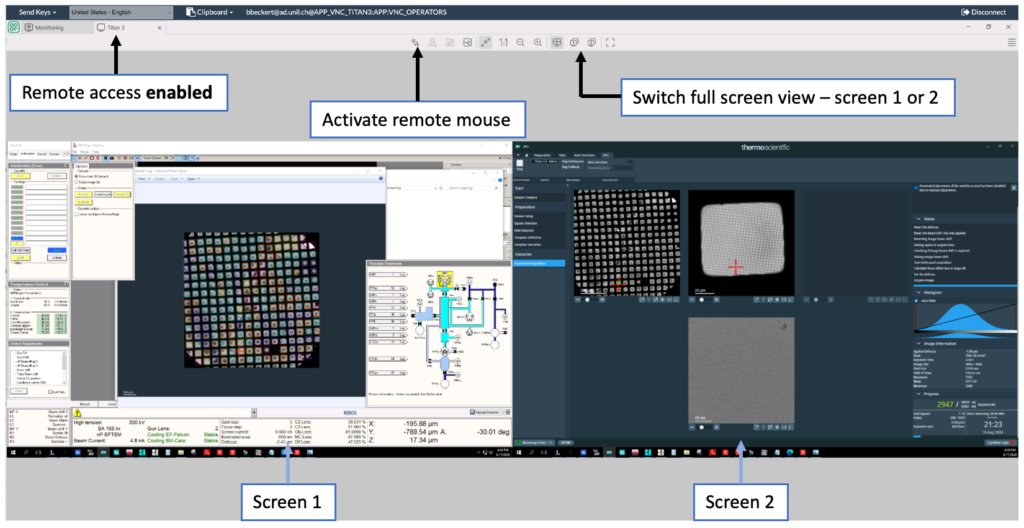
Screen 1 (microscope)
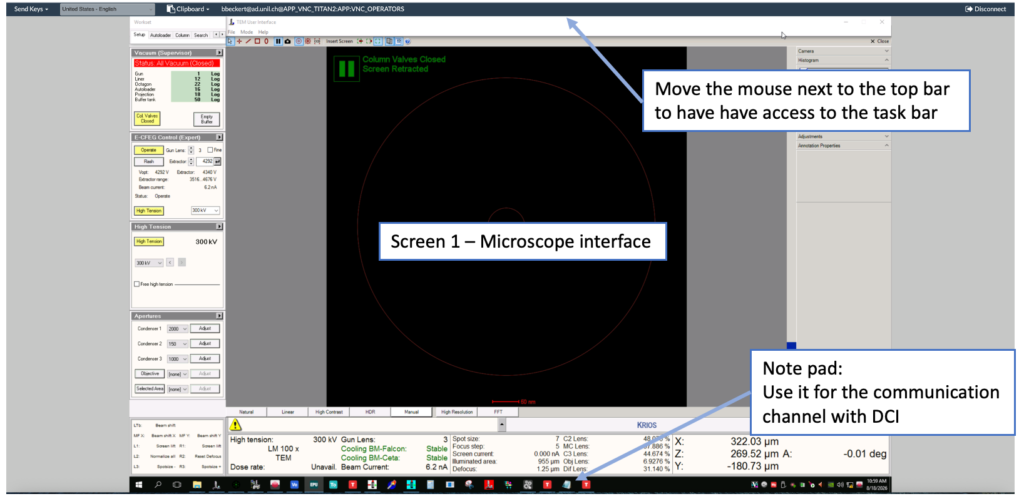
Screen 2 (acquisition software)
Communication with the DCI personal:
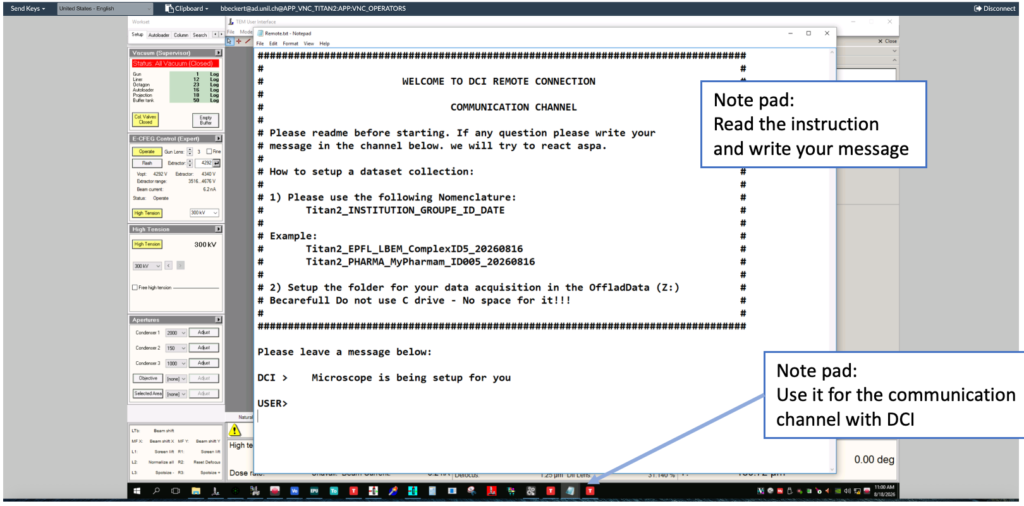
For the communication channel, we use Notepad !
Open Notepad
Selecte the file: Remote.txt on the desktop.
Read the instructions
Leave your message!